KS Tech logo

Your Degree is Just the Starting Line: Navigating Data Analytics After Graduation

Graduating college is a massive milestone, but stepping into the job market can feel daunting. If you are looking at your degree—whether it’s in B.Com, B.E., BCA, BBA, or even a BSc in a non-technical subject—and wondering how to pivot into a high-paying tech career, Data Analytics is one of the most accessible and lucrative pathways available. Companies across every industry are drowning in data and desperate for professionals who can interpret it. The market is shifting from looking only at generic degrees to looking for specialized “Insight Architects” who know how to solve real business puzzles. Here is your strategic guide to breaking into Data Analytics immediately after graduation. Does Your Graduation Degree Matter? The Honest Truth The short answer is no, you do not need a computer science or math degree. However, your background will give you a unique superpower that you can leverage. Commerce / BBA / MBA Graduates You already understand business logic, profit margins, and KPIs (Key Performance Indicators). You don’t just analyze data; you understand why the business needs it. Engineering / BCA / BSc Tech Graduates You have a natural edge with logical thinking, systems structure, and algorithmic problem-solving. Learning Python and SQL will feel like a natural extension of your studies. Arts / Humanities / Science Graduates You excel at research, critical thinking, and storytelling. Data analytics is 50% technical and 50% communication—translating complex numbers into simple stories for stakeholders. The Fresher Graduate Blueprint: From Degree to Data Job To get hired over hundreds of other applicants, you need a structured approach. This 4-step execution strategy bridges the gap between your college degree and your first paycheck. Step 1: Master the Entry-Level Tech Stack Do not try to learn everything at once. Focus entirely on the core tools recruiters look for in entry-level resumes: Advanced Excel Learn conditional formatting, complex formulas, and Pivot Tables. A massive portion of business reporting still runs entirely on Excel. SQL The most critical skill. You must know how to write database queries, use JOIN statements, and aggregate data. Power BI Learn to convert ugly rows of data into interactive, visual dashboards. Python Basics Focus specifically on libraries used for handling data, such as Pandas and NumPy. Step 2: Build a Proof-of-Work Portfolio When you graduate, your resume is a blank slate. To get a hiring manager’s attention, you need to show, not just tell. Create a GitHub profile or a personal website containing 3 distinct projects: Project 1: Data Cleaning Take a messy, unformatted dataset from the web (like a raw e-commerce sales sheet) and document exactly how you cleaned it using Excel or Python. Project 2: SQL Exploratory Analysis Write a script querying a public database to answer a specific business question (e.g., “Which product categories lost the most revenue last quarter?”). Project 3: Visual Dashboard Build an interactive dashboard using Power BI or Tableau that highlights key trends at a single glance. Step 3: Target the Right Entry-Level Roles Many freshers make the mistake of applying for “Senior Data Scientist” positions and getting discouraged by rejections. Instead, look for these beginner-friendly job titles: Junior Data Analyst / Analyst Trainee These are heavily mentored roles designed specifically for fresh grads to learn on the job. Reporting Analyst Focuses on keeping weekly or monthly business performance metrics accurate and up to date. Business Intelligence (BI) Assistant Helps maintain enterprise dashboards and handles standard SQL data extraction. Step 4: Upskill on AI Workflows The role of an analyst is evolving. Top companies expect freshers to use AI as a productivity booster. Learn how to use large language models (LLMs) to write boilerplate SQL queries or debug Python syntax errors, making sure you double-check the logic yourself.

Top 20 Excel Functions Every Data Analyst Must Know

Excel remains the ultimate sandbox for data analytics. Before you load your data into Python or SQL, you will almost always use Excel to inspect, clean, and run quick diagnostics on it. To help you cut through the noise, here are the top 20 Excel functions every data analyst must master, categorized by exactly how you will use them on the job. 1. Lookup and Reference Functions (Finding the Data) These functions are the backbone of data manipulation, allowing you to connect disjointed data tables using common identifiers. 2. Logical and Conditional Functions (Filtering and Branching) Data analysts use these to categorize data, flag specific anomalies, and perform conditional math. 3. Aggregation and Statistical Functions (Summarizing the Data) You cannot analyze data without summarizing it. These functions help you extract quick metrics from thousands of rows. 4. Text Functions (Data Cleaning) Real-world data is notoriously messy. Names have random spaces, IDs are merged together, and formatting is inconsistent. These functions fix that. 5. Date and Time Functions (Trend Analysis) Most business analysis relies heavily on time tracking (e.g., Month-over-Month growth, quarterly targets, or delivery turnarounds). Pro-Tip: While knowing these 20 functions will put you in the top 10% of standard spreadsheet users, always combine them with Pivot Tables and Power Query for advanced, automated data transformations.

Cracking the Data Code: The Ultimate Guide to the Best Data Analytics Courses in Vadodara

Introduction In today’s digital economy, data has become one of the world’s most valuable assets. Every online purchase, social media interaction, business transaction, healthcare record, and financial operation generates massive amounts of information. Organizations are now leveraging this data to make smarter decisions, improve customer experiences, optimize operations, and gain a competitive edge. This growing reliance on data has created an unprecedented demand for skilled data analysts across industries. From multinational corporations to startups, companies are actively seeking professionals who can transform raw numbers into meaningful business insights. If you’re looking to build a rewarding career in this rapidly expanding field, enrolling in the best Data Analytics Course in Vadodara can be your first step toward success. Whether you’re a student, working professional, business owner, or entrepreneur, this comprehensive guide will help you understand everything about Data Analytics, career opportunities, essential skills, salary expectations, and how to choose the right Data Analytics training institute in Vadodara. What is Data Analytics? Data Analytics is the process of collecting, cleaning, organizing, analyzing, and interpreting data to uncover patterns, trends, and valuable insights that help businesses make informed decisions. Rather than relying on guesswork, organizations use data analytics to answer critical questions such as: Data analytics transforms complex datasets into meaningful information that drives smarter business decisions. Why Data Analytics is One of the Fastest Growing Careers The world generates over 328 million terabytes of data every day, and this number continues to grow rapidly. Organizations need skilled professionals who can analyze this information and convert it into actionable strategies. Industries hiring Data Analysts include: As businesses become increasingly data-driven, the demand for qualified analysts continues to rise. Why Learn Data Analytics in Vadodara? Vadodara has evolved into one of Gujarat’s fastest-growing educational and industrial hubs. The city is home to numerous IT companies, manufacturing industries, startups, and multinational organizations that require data-driven decision-making. Advantages of studying Data Analytics in Vadodara include: Students can build job-ready skills without relocating to cities like Bangalore, Pune, or Hyderabad. Skills You’ll Learn in a Data Analytics Course A professional Data Analytics Training program should cover both technical and analytical skills. Microsoft Excel Excel remains one of the most widely used analytics tools. You’ll learn: SQL SQL is essential for retrieving and managing data stored in databases. Topics include: Python Python is among the most popular programming languages for data analytics. You’ll learn: Power BI Power BI enables professionals to create interactive business dashboards. Skills include: Tableau Tableau is a leading visualization platform used by businesses worldwide. Students learn: Statistics Strong statistical knowledge helps analysts interpret data correctly. Topics include: Who Should Join a Data Analytics Course? A Data Analytics Course is suitable for: No prior coding experience is required for beginner-level programs. Career Opportunities After Data Analytics Training After completing a professional certification, you can apply for roles such as: The demand for these roles continues to grow across sectors. Salary of Data Analysts in India Salary depends on skills, certifications, experience, and location. Approximate salary ranges: Experience Average Annual Salary Fresher ₹3.5 – ₹6 LPA 2–4 Years ₹6 – ₹10 LPA 5–8 Years ₹10 – ₹18 LPA Senior Analyst ₹18 – ₹30+ LPA Professionals skilled in Python, SQL, Power BI, and cloud analytics often command higher salaries. Features of the Best Data Analytics Course in Vadodara When choosing a training institute, ensure it offers: Industry-Oriented Curriculum The course should cover: Live Projects Practical learning is essential. Students should work on: Experienced Trainers Learn from professionals with real-world industry experience who can bridge the gap between theory and practice. Placement Assistance A good institute should provide: Flexible Learning Options Choose between: How to Choose the Best Data Analytics Institute in Vadodara Before enrolling, evaluate these factors: Investing time in selecting the right institute can significantly impact your career growth. Why Hands-On Projects Matter Employers value practical experience as much as theoretical knowledge. Working on real datasets helps you: Projects also make your resume stand out in a competitive job market. Frequently Asked Questions Is coding mandatory for Data Analytics? No. Beginners can start with Excel and SQL. Python is introduced gradually, making it accessible even without a programming background. How long does a Data Analytics Course take? Most comprehensive courses range from 3 to 6 months, depending on the curriculum and learning mode. Can non-IT students learn Data Analytics? Yes. Students from Commerce, Arts, Science, Engineering, and Management backgrounds can successfully transition into Data Analytics with proper training. Which tools are most important? The core tools include: These are widely used across industries. Is Data Analytics a good career in 2026 and beyond? Absolutely. As businesses continue to embrace digital transformation and data-driven decision-making, the demand for skilled Data Analysts is expected to remain strong across sectors. Final Thoughts Data Analytics is no longer just a technical skill—it’s a strategic capability that powers innovation, efficiency, and smarter decision-making in virtually every industry. For students, professionals, and entrepreneurs in Vadodara, gaining expertise in analytics can unlock exciting career opportunities and provide a competitive advantage in the job market. When selecting a Data Analytics Course in Vadodara, prioritize institutes that emphasize practical learning, real-world projects, mentorship from experienced professionals, and career support. A well-rounded program should equip you with essential tools like Excel, SQL, Python, Power BI, Tableau, and statistics while helping you build a portfolio that demonstrates your capabilities. The right training can do more than prepare you for your first job—it can lay the foundation for a long-term career in business intelligence, data visualization, analytics consulting, or even data science. As organizations increasingly rely on data to shape strategy, professionals with strong analytical skills will continue to be in high demand. Whether you’re starting your career, looking to upskill, or planning a career transition, now is an excellent time to invest in data analytics and become part of one of the fastest-growing professions in the digital economy.

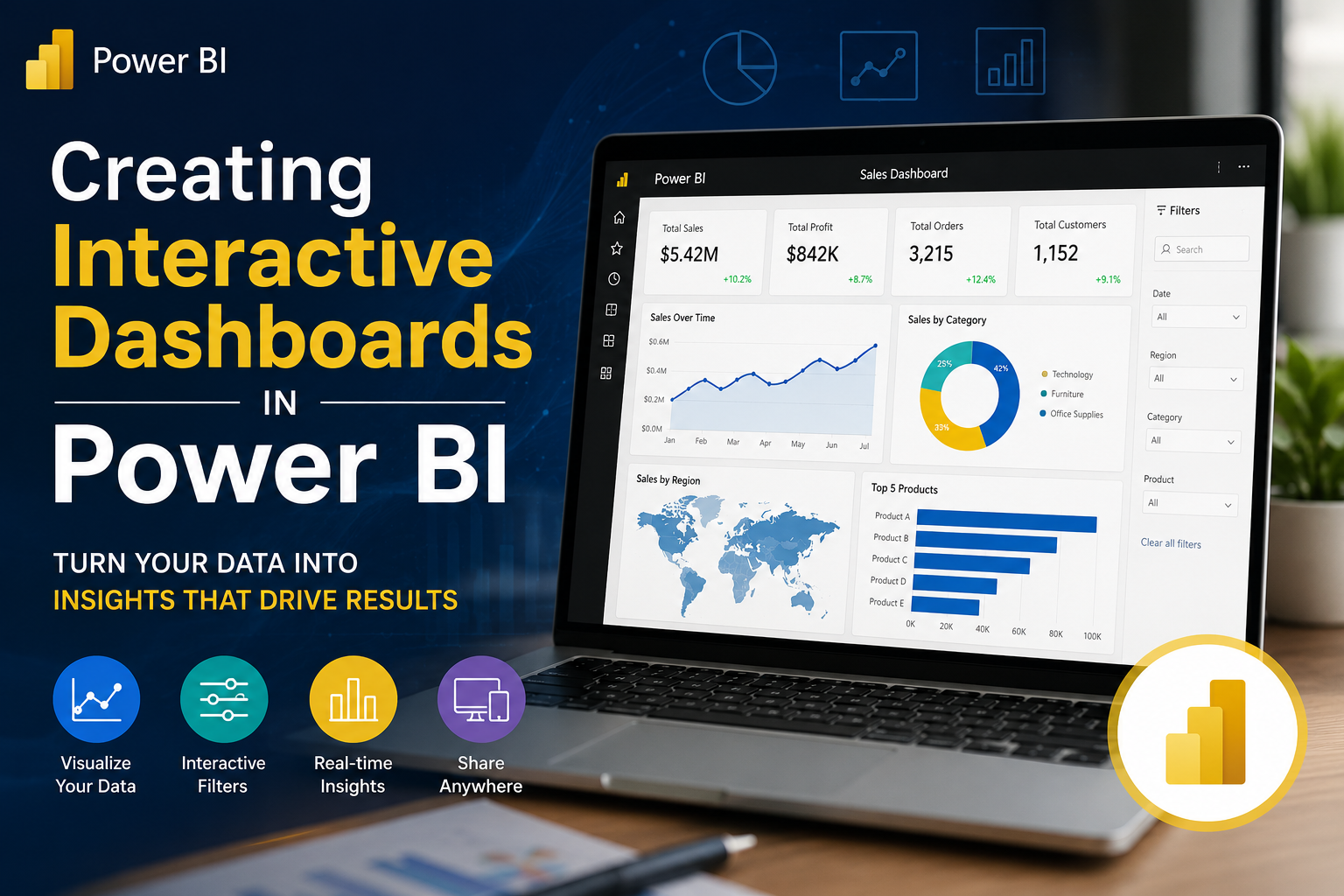
Creating Interactive Dashboards IN Power BI

While Excel is fantastic for quick data manipulation and prototyping, Microsoft Power BI is the industry standard for enterprise-grade, interactive data storytelling. It can easily handle millions of rows, connect directly to cloud databases, and auto-refresh reports in real time. Building a Power BI dashboard requires a structured, end-to-end framework often called the Data Pipeline lifecycle. Here is the step-by-step process to build a high-performing interactive dashboard. The 4-Step Power BI Architecture Step-by-Step Dashboard Build Step 1: Get & Transform Data (Power Query) Before you drop charts onto your canvas, you must ensure your data is clean and uniform. 1. Click Get Data in Power BI Desktop and select your source (SQL Database, Excel, Web, CSV, etc.). 2. Click Transform Data to open the Power Query Editor. 3. Perform standard data hygeine: Fix Data Types: Ensure date columns are formatted as `Date`, and monetary values are `Fixed Decimal Number`. Remove Nulls/Duplicates: Clean out empty rows or corrupted records. Unpivot Columns: Transform wide tables (e.g., columns for Jan, Feb, Mar) into long, narrow analytical tables for faster processing. Step 2: Establish the Semantic Model (Data Modeling) A common mistake beginner make is dumping everything into one giant flat spreadsheet. For complex, responsive dashboards, map your data into a Star Schema layout within the Model View: Fact Tables: Your central transaction table containing numeric values and metrics (e.g., `Fact_Sales` with Revenue, Quantity, OrderDate). Dimension Tables: Surrounding lookup tables containing descriptive attributes (e.g., `Dim_Customers`, `Dim_Products`, `Dim_Geography`). Relationships: Create 1-to-Many (`1:*`) relationships** linking unique IDs from your Dimension tables to the matching keys in your Fact table. Ensure cross-filter directions are set to single for optimal speed. Step 3: Write Key Metrics (DAX Fundamentals) Do not drag raw numeric columns directly onto charts. Instead, build explicit calculations using DAX (Data Analysis Expressions). Create a dedicated table to house your measures, and start with core business metrics: Total Revenue: “`dax Total Revenue = SUM(Fact_Sales[Revenue Amount]) Year-Over-Year (YoY) Growth: “`dax YoY Revenue Growth = VAR CurrentYearSales = [Total Revenue] VAR LastYearSales = CALCULATE([Total Revenue], SAMEPERIODLASTYEAR(‘Dim_Date'[Date])) RETURN DIVIDE(CurrentYearSales – LastYearSales, LastYearSales, 0) Step 4: Build the Visual Interface Switch to the Report View to begin designing your user experience. 1. Set Up the Canvas Background: Choose a professional layout. You can use a very light grey background (`#F3F4F6`) with crisp white visual containers to help charts pop cleanly. 2. KPI Headline Cards: Place standard card visuals across the top of your report to show key summaries (`Total Revenue`, `Profit Margin`, `Total Active Users`). 3. Choose the Right Core Visuals: Time-Series Analysis: Use a Line Chart to map trend variations over months or quarters. Categorical Breakdowns: Use a Clustered Bar Chart to evaluate product categories or regional performance. Contribution Analysis: Use a Matrix Visual for a structured drill-down look at financial numbers. Engineering Advanced Interactivity Power BI shines brightest through its native slice-and-dice interaction layers. Make sure to activate these three features to build a dynamic app-like experience: 1. Cross-Filtering and Highlights By default, clicking on a specific data segment in one chart (e.g., selecting “Electronics” on a bar chart) will automatically highlight or filter all other charts on the page. Pro-Tip: If you want a specific chart to remain unchanged when filters are clicked, go to the Format tab, click Edit Interactions, and select the None icon on that visual. 2. Drill-Through Actions Instead of cluttering a single screen with details, let users deep-dive into specifics. Create a secondary, detailed page (e.g., *Customer Deep Dive*). Drag the `Customer Name` field into the **Drill-through filters** well on that second page. Now, users can right-click any customer name on the main dashboard and instantly jump to that person’s detailed transaction history. 3. Tooltip Canvas Overlays Standard tooltips display basic numbers when a user hovers over a chart element. Power BI allows you to design an entirely separate miniature page and use it as a custom hover card. Hovering over a regional map, for example, can trigger a mini tooltip line graph showing that specific region’s 12-month sales trajectory. The Pro Dashboard Checklist Keep Slicers Collapsible: Use the Bookmarks and Selection Pane to build a slide-out filter panel. This keeps your canvas clean and maximizes real estate for your core charts. The 5-Second Test: A stakeholder should look at your dashboard and understand the top core business insight within 5 seconds without scrolling. Limit Color Variance: Use a single cohesive brand theme. Use neutral tones for 90% of the dashboard elements, reserving a vibrant action color (like navy blue or teal) exclusively to draw eyes to critical anomalies or targets.

How Data Analytics Drives Business Decisions Today

Impact of data analytics on modern businesses, from optimizing operations to enhancing customer experiences.

Top 5 Essential Skills for a Successful Data Science Career

Dive into the must-have skills for data science professionals, from mastering Python and machine learning to data visualization…